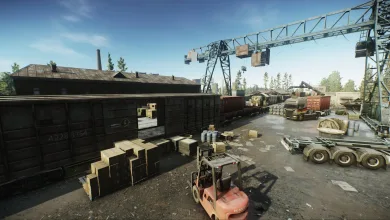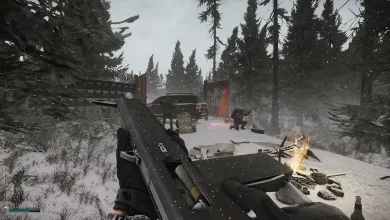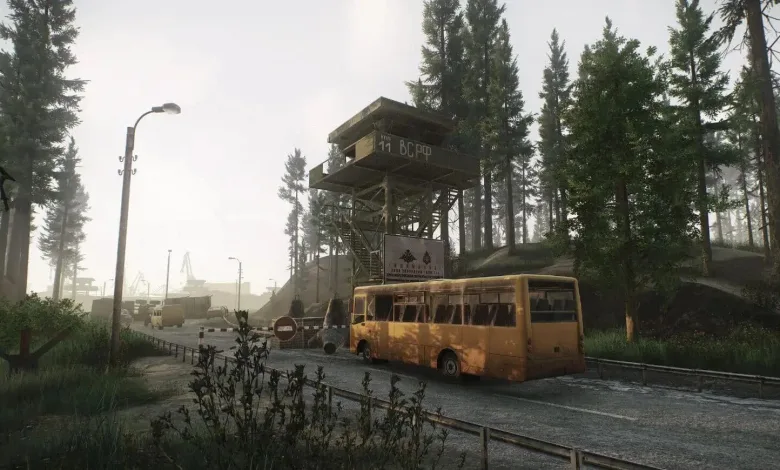
Escape from Tarkov settings are easier to tune when you know whether the CPU or GPU is limiting performance, and the answer can change between maps. A community guide uses Streets of Tarkov and Factory as examples of that variation, rather than offering one preset for every PC.
Tarkov Settings Explained – Guide 2026 [Discussion]
byu/wildTabz inEscapefromTarkov
Check the limit before changing settings
The guide uses GPU usage near 97-100% as a sign that the graphics card is close to its limit. Much lower usage can point to a CPU limit, though it is a rule of thumb, not a diagnosis on its own. Check more than one map, since performance can vary from raid to raid.
Low overall CPU usage does not necessarily rule out a processor limit. Tarkov may lean more heavily on some cores than others, so a few busy cores can hold performance back even when the total looks low. RAM can also contribute to stutters when it is slow or insufficient, but the guide treats it as a supporting factor rather than the first place to look.
Match graphics changes to the bottleneck
- If the GPU is the limit, try DLSS or FSR before lowering your display resolution. Upscaling can improve frame rates when the GPU is the constraint, but it may soften the image or add visual artifacts. The guide’s DLSS starting points are Quality at 1080p, Quality or Balanced at 1440p, and Balanced or Performance at 4K. It suggests preset K at 1080p and 1440p, and K or M at 4K.
- Set texture quality around your VRAM. The guide recommends Low at 6 GB or less, Medium at 8-10 GB, High at 12-16 GB, and Ultra at 16 GB or more. Higher textures need more video memory, so an option that works on most maps may cause trouble on Streets if VRAM is tight. Streets of Tarkov Lower Texture Resolution Mode reduces textures by one level on that map.
- If the CPU is the limit, try Object LOD quality at 2.5 as a starting point. Lower LOD can help performance but makes distant objects appear sooner, while higher LOD preserves detail at a cost. The guide argues that a higher FOV can sometimes help frame rates through Tarkov’s LOD behavior, but FOV is also a comfort choice, so test it alongside LOD rather than treating it as a universal rule.
- For GPU-heavy effects, lower shadows and volumetric lighting, and consider HBAO on Max Performance. The guide favors turning volumetric lighting off when visibility is the priority. It also recommends trying SSR either off or at Ultra, depending on available GPU headroom.
Settings that depend on your system
The guide recommends turning off Preload Hideout if you do not need the Hideout ready at launch. Automatic RAM Cleaner may be worth trying on systems with 16 GB of RAM or less if memory-related stutters are a problem, while the guide considers it unnecessary at 32 GB or more. Only use physical cores is another setting to test on a CPU-limited system, since its effect can vary by processor.
It also favors borderless mode based on a performance bug affecting fullscreen, while noting that an update could change the result. Treat that as a potentially temporary workaround, not a fixed rule. For overall visibility, the guide recommends 1500, while texture, LOD, and upscaling choices are the settings it ties more closely to hardware limits.
Which setting has made the biggest difference on your Tarkov setup? For more on the game’s map-by-map performance quirks, stay connected on X, Bluesky, YouTube, Instagram, Steam, and Telegram.
Escape from Tarkov
Developed by Battlestate Games