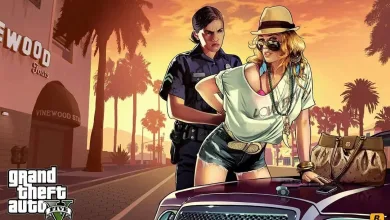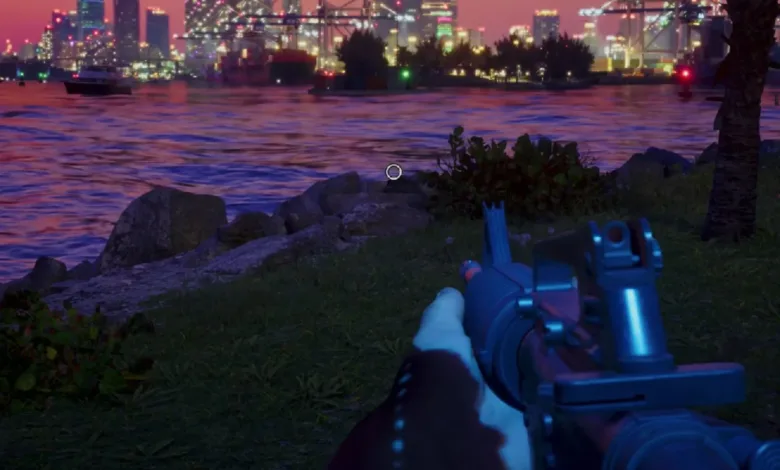
GTA 6’s standard camera controls offer three third-person camera heights, not a full first-person gameplay setting. A controller glitch can put you in first person behind the wheel on PS5 or Xbox, but save just beforehand because reloading is how you return to the normal view.
Set up and trigger the view
- Pause the game and open Settings, then select Controller.
- Scroll to Touch Pad Button on PS5 or View Button on Xbox. Set the option to Camera (2/2).
- Get into a car and sit in the driver’s seat, then bring up your phone.
- Press Circle on PS5 or B on Xbox at the same time as the Touch Pad Button or View Button.
- If the view does not change, repeat the final input a few times.
When the glitch activates, the phone closes and the camera switches to first person inside the car.


Keep the view on foot on PS5
A separate PS5 touchpad sequence can also keep the view after you leave the car. With Touch Pad Button mapped to Camera (2/2), sit in the driver’s seat and open your phone with Up on the D-pad. Press Circle to put the phone away, then tap the touchpad repeatedly. Once the view switches, you can get out, move around, open your loadout, and drive in first person. Equipping a gun also uses first-person weapon animations.
Return to third person
Reload a save to clear the glitch. Save immediately before trying it so you can get back to the normal camera without losing more progress than necessary.
If you’ve tried the PS5 touchpad sequence, share whether the view stayed in first person after you left the car. For more on GTA 6’s camera quirks and controller workarounds, stay connected on X, Bluesky, YouTube, Instagram, Steam, and Telegram.
Grand Theft Auto VI
Developed by Rockstar North, Rockstar Games
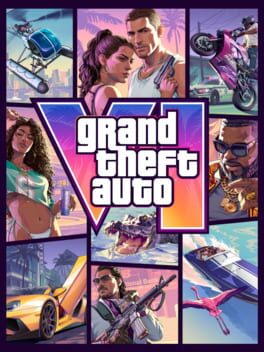
Grand Theft Auto VI heads to the state of Leonida, home to the neon-soaked streets of Vice City and beyond in the biggest, most immersive evolution of the Grand Theft Auto series yet.
- Genre Shooter, Racing, Adventure
- Platforms Xbox Series X|S, PlayStation 5
- Perspective First person, Third person
- Modes Single player, Multiplayer, Co-operative
- Release November 19, 2026
- Publisher Rockstar Games, Take-Two Interactive
-
Age Rating