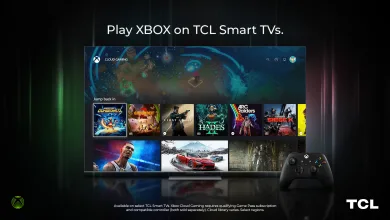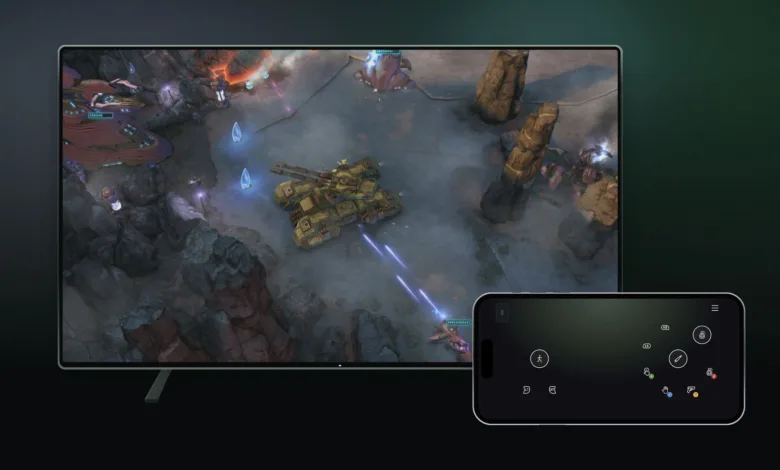
Xbox Cloud Gaming is rolling out two new ways to play. On supported Smart TVs, players can use a supported Android or iOS phone as a controller. In the United States, the Xbox Nano Controller can connect over Wi-Fi directly to the cloud server running a game. Microsoft outlined both previews in its Nov. 4 Xbox announcement.
Both features are still being tested, and some devices, games, and cloud gaming experiences may not support them yet.
Use a phone as a Smart TV controller
The phone controls open in a browser, so players can start a supported cloud game on their TV without a physical controller. Some games will also have controls tailored to their play style.
To try the feature, turn on Preview Features under Settings > Account in the latest supported Smart TV experience. Launch a game without a physical controller connected, then choose the phone option when it appears. The preview is rolling out on supported TVs in countries where Xbox Cloud Gaming is available.
Connect the Xbox Nano Controller over Wi-Fi
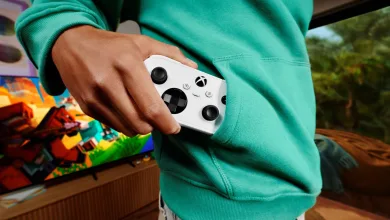
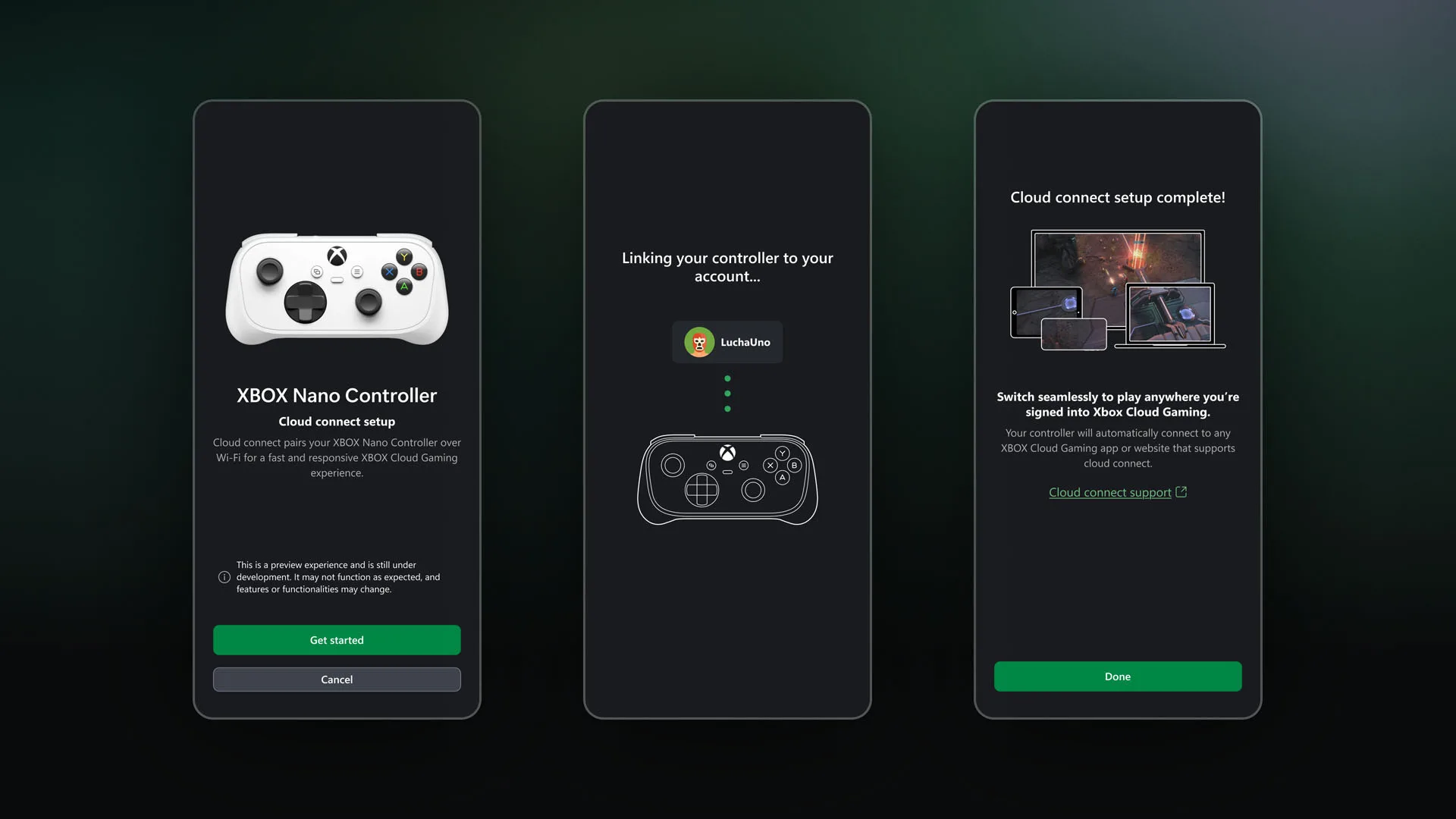
Cloud connect sends the controller’s input over Wi-Fi to the server running the game rather than using Bluetooth to connect to the TV. That may reduce input latency. The preview is available in the United States on supported Smart TVs and the web, but it does not work with every cloud gaming experience.
Set up cloud connect with the Xbox beta app on Android or the Xbox Accessories app on PC. Xbox Insider enrollment is required when using the PC app. Follow the app prompts to connect the controller to Wi-Fi, then open a supported Xbox Cloud Gaming experience and sign in with the same Xbox account used during setup.
Feedback for the phone controller can be sent through the phone or a supported Smart TV app. For cloud connect, players can use the Xbox Accessories app on PC or the Xbox mobile app.
Would phone controls be enough for a quick session on a TV, or would you stick with a controller? Follow along as these two input previews develop on X, Bluesky, YouTube, Instagram, Steam, and Telegram.