Marvel’s Wolverine’s Photo Mode is built for more than freezing a fight. Players can adjust five independent lights, reposition Logan, and stage him with other characters. Start with one or two lights for a portrait, then add more only when the scene calls for them.
Some of the examples involve mid-game scenes and outfits, so expect spoilers.


Unlock chapter select and set up your controls
After the credits, load your save and head to the bed in Logan’s cabin to open Chapter Select. You can return to story locations and moments, from Canada’s snowy wilderness to the neon arcades of Shinjuku and Madripoor’s tighter streets.
Photo Mode opens from the Pause menu by default. To get to it faster, assign a DualSense D-pad button to Photo Mode in Settings. You can also map another button to slow the action by 30%, 50%, or 70%, which gives you more time to frame a moving character or effect.
If the multi-tab Photo Mode interface blocks your composition, press the reposition button to move it to the other side of the screen. Tilt the camera for a slanted angle or a vertical 9:16 frame, as well as a standard horizontal shot.
Build the scene with light
Each of the five lights has adjustable color, intensity, and distance. Choose Sphere for a broader glow or Spotlight for a more focused beam. Custom natural light settings provide another way to tune the scene.
For a portrait, try a key light in front of Logan and a softer rim light behind him. Move the key light above, below, or to one side to change the mood. A lower intensity rim light can catch his shoulders or hair and help separate him from the background. You do not need all five lights to get a clear, dramatic result.
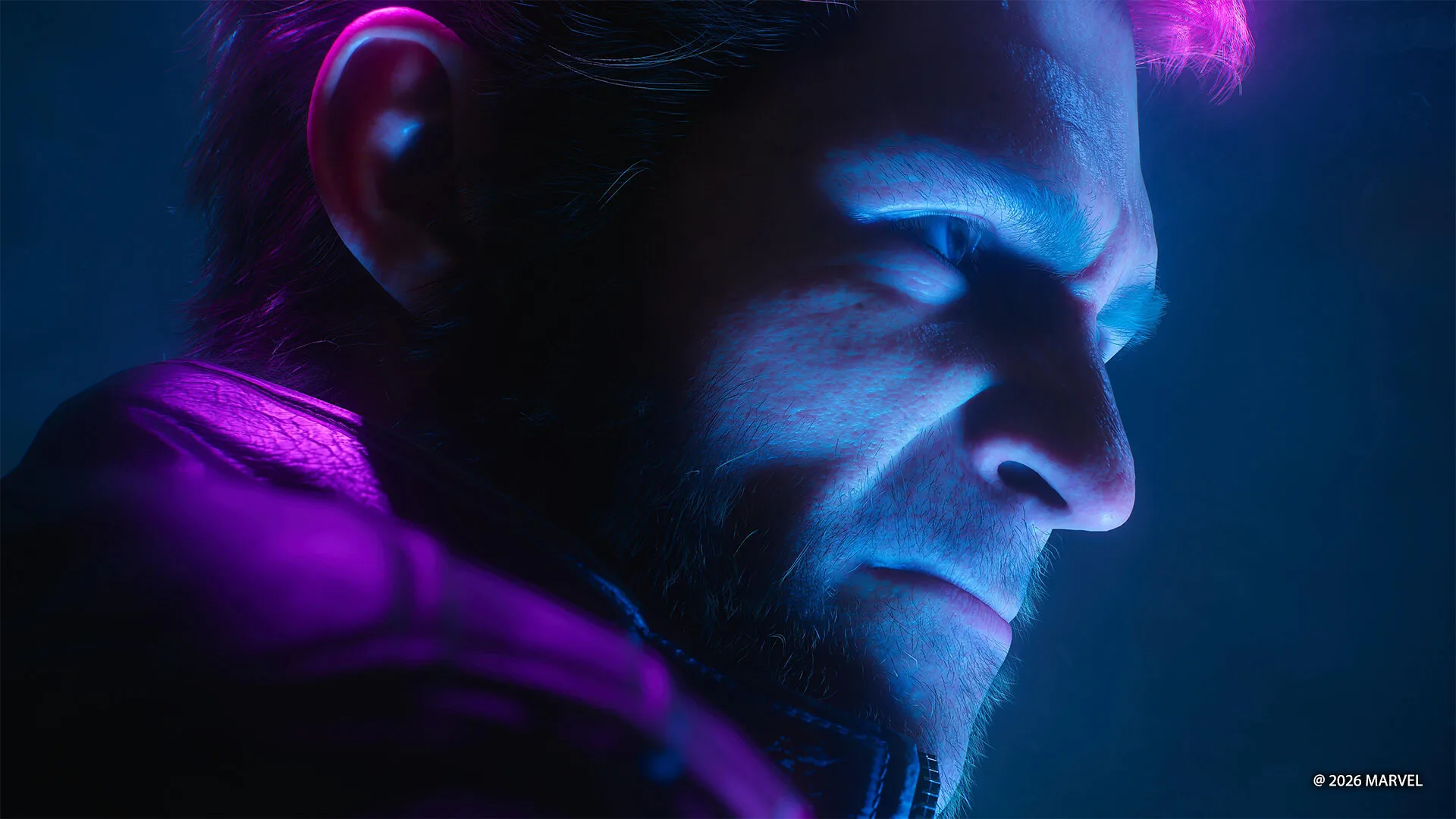
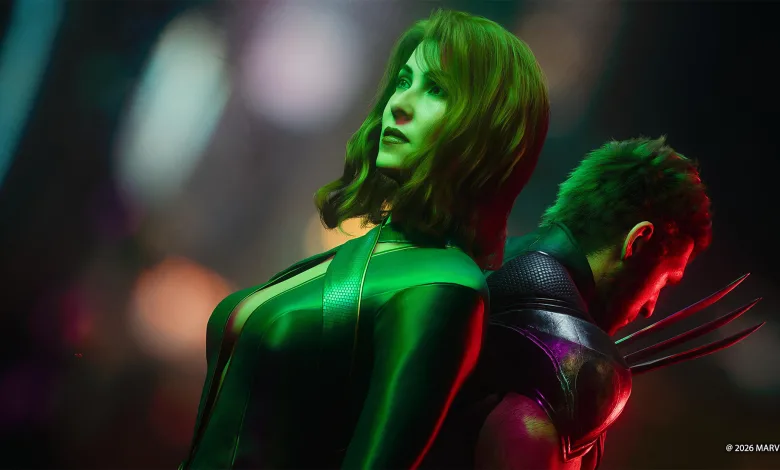
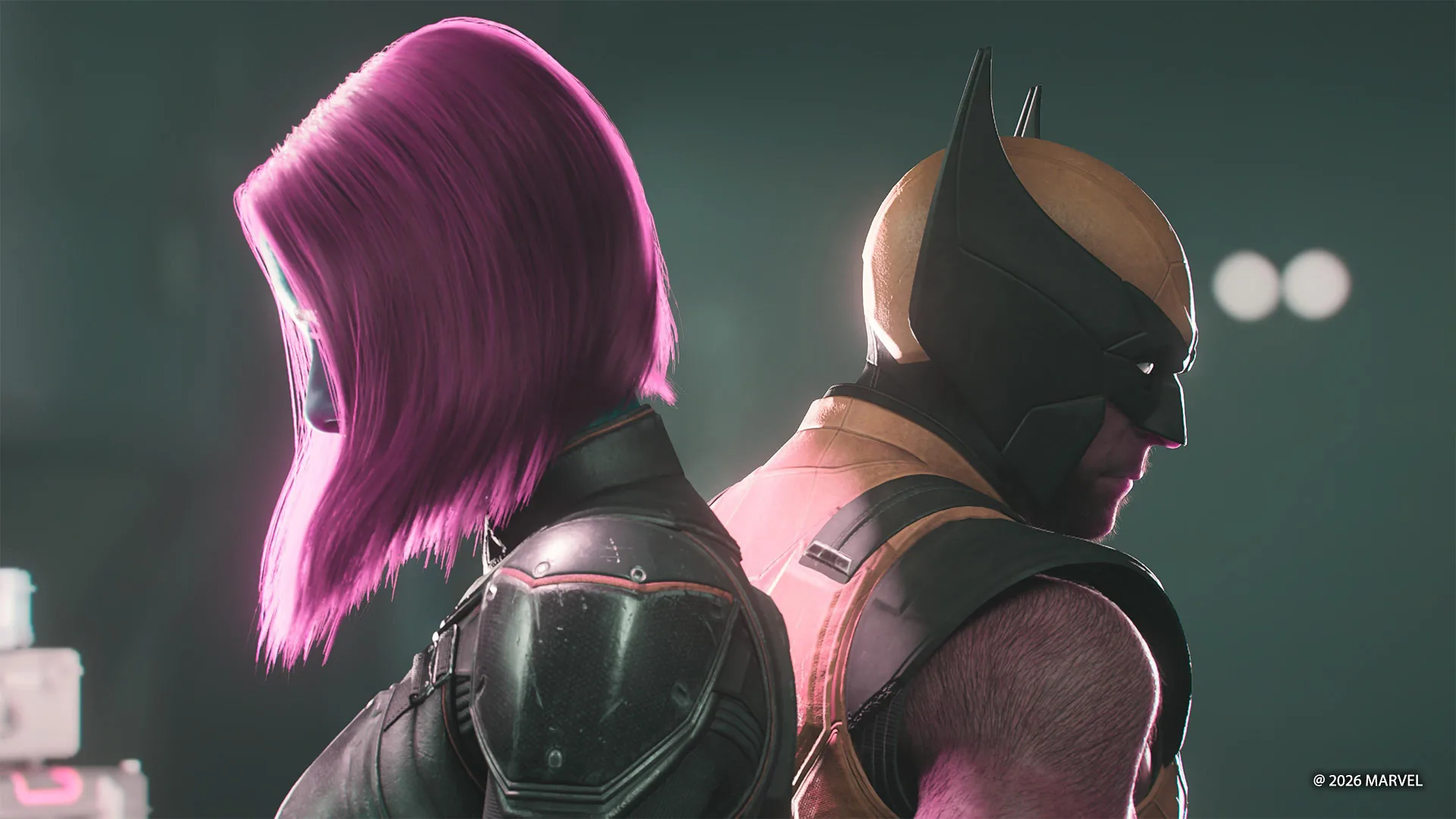
For the arcade in “In the Shadows,” use the lights to echo the colors of the cabinet screens and neon overhead, including sources that sit outside the camera frame. A casino setup can use two lights instead: a purple glow near a fruit machine can catch Jean Grey’s left side, while an off-white light on Logan can suggest the broader casino floor.
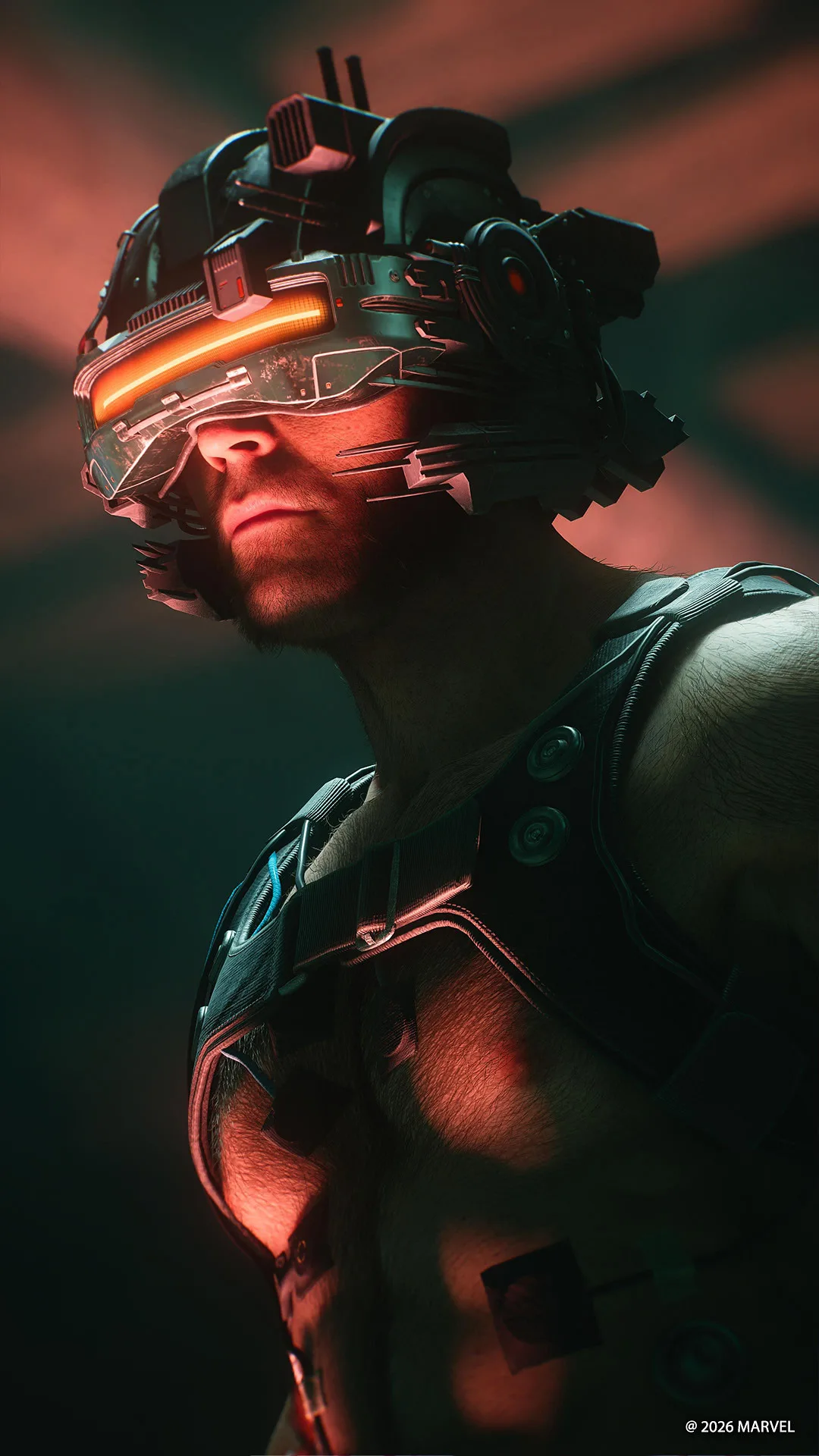
Three lights can mimic several sources in one scene, such as lanterns behind the characters and candles in the foreground. A stronger front light can also cast a pronounced shadow across the floor, adding depth to the frame.
Pose Logan and arrange the cast
Character Pose lets you cycle through set poses, move Logan within a generous radius, rotate him, and choose from available facial expressions. You can also switch between unlocked suits and claw styles, or hide Logan and enemy characters with the menu toggles.
One positioning detail is easy to miss. The lights orbit around Logan’s position when you first enter Photo Mode, not the spot where you move him afterward. Re-aim the lights after repositioning him if you want to keep his face or suit illuminated.
Try changing Logan’s suit before leaving a scene. Different materials react to light in different ways, so another outfit can change the feel of the same composition. The camera can also help disguise clipping when you place Logan close to another character, or turn an overlap into a deliberate poster-like effect.
Action Figure mode, found in the Character Pose menu, shrinks Logan to miniature size. He keeps the same movement radius, and his airborne poses offer another set of ways to build a frame. Try placing the small figure against a character’s hand or using a solid background color for a comic-cover look.
Check the frame before you leave
Before exiting Photo Mode, pan around the scene and try a wider lens. A different camera angle may reveal a character or background detail that turns into a stronger composition. It is a quick final check, and it can make a frozen moment feel like a completely different shot.
Which location in Logan’s story would you revisit for a photo built around its lighting? For more on Wolverine’s character poses and photo tools, stay connected with us on X, Bluesky, YouTube, Instagram, Steam, and Telegram.
Source: PlayStation Blog
Marvel's Wolverine
Developed by Insomniac Games

Marvel's Wolverine is a single-player action-adventure game and a standalone entry in the Marvel's Spider-Man series, sharing continuity with those titles while telling its own self-contained story. Players control Logan/Wolverine in close-quarters combat, using his adamantium claws against enemies drawn from the X-Men comic book mythology.
- Genre Hack and slash/Beat 'em up, Adventure
- Platforms PlayStation 5
- Perspective Third person
- Modes Single player
- Release September 15, 2026
- Publisher Sony Interactive Entertainment
-
Age Rating