GTA 6’s console graphics settings are about image clarity and comfort, not raising the frame rate. The game is capped at 30 FPS on consoles, including PS5 Pro, so start by reducing motion blur and calibrating the picture for your display.
Adjust GTA 6’s in-game settings
Open Settings, then Display. Try these adjustments and keep the combination that looks best on your screen:


- Motion Blur: Set it to 0 for the least blur, or try 1 or 2 if you prefer to leave some on.
- Brightness: Recheck the game’s brightness calibration and adjust it to suit your TV or monitor. The initial calibration may not match your display.
For camera movement, open the Camera tab, lower Camera Shake, and turn Camera Bob off.
Check your PS5 or PS5 Pro output
On PS5 or PS5 Pro, go to Settings > Screen and Video > Video Output and choose the highest resolution available for your display. On PS5 Pro, enable PSSR.
HDR is a personal and display-dependent choice. Try it both on and off, since some TVs handle HDR better than others. Enabling 120Hz or VRR will not raise GTA 6’s 30 FPS cap, so those options are not a way to get a higher frame rate in this game.
Which change looks best on your display, lower motion blur, a brightness adjustment, or a different HDR setting? For more practical coverage of GTA 6’s console settings and image options, follow us on X, Bluesky, YouTube, Instagram, Steam, and Telegram.
Grand Theft Auto VI
Developed by Rockstar North, Rockstar Games
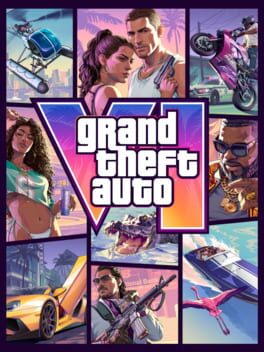
Grand Theft Auto VI heads to the state of Leonida, home to the neon-soaked streets of Vice City and beyond in the biggest, most immersive evolution of the Grand Theft Auto series yet.
- Genre Shooter, Racing, Adventure
- Platforms Xbox Series X|S, PlayStation 5
- Perspective First person, Third person
- Modes Single player, Multiplayer, Co-operative
- Release November 19, 2026
- Publisher Rockstar Games, Take-Two Interactive
-
Age Rating