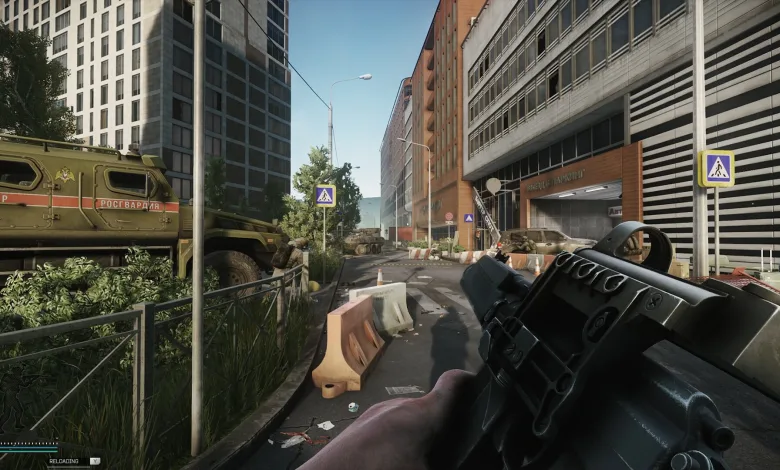
If you tried Smooth Motion and felt like your mouse went sluggish, you were not imagining it. That feature works by holding and blending frames to present a steadier visual cadence, and the act of buffering introduces extra milliseconds between your input and what you see.
Smooth Motion can look attractive on video or a TV because camera movement appears less jumpy. In a tactical shooter like Escape From Tarkov, visual polish is not the priority. Tarkov depends on precise micro-adjustments, fast ADS corrections, and instant feedback. When the display delays frames, your muscle memory and the on-screen response fall out of sync. The result is floaty aiming, overcorrections, missed flicks, and a general feeling that your mouse has been put through molasses.

How it happens: instead of showing each frame as the GPU produces it, the smoothing system holds frames and blends or interpolates intermediate frames to hit a steady cadence. That blending step adds latency. Even a few milliseconds are enough for experienced players to notice a mismatch between their input and the visual result. If aiming down sights suddenly feels heavier, tracking moving targets jumps around, or close-quarters fights feel oddly inconsistent, Smooth Motion is a likely suspect.
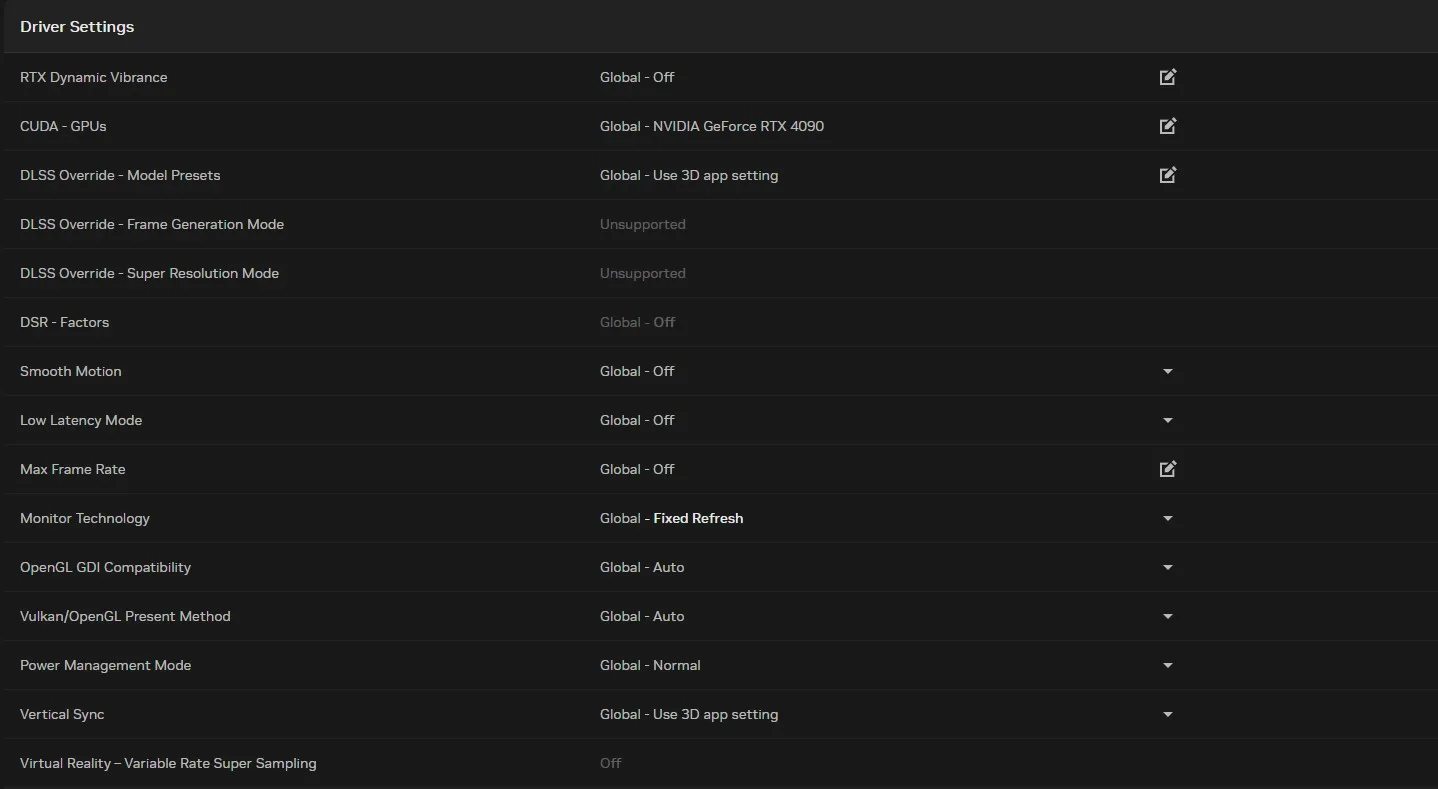
Smooth Motion in Nvidia can be found in the Nvidia APP under Driver settings:
Competitive and precision shooters suffer the most. Games without aim assist or constant camera motion reveal latency quickly, and Tarkov is built around exactly those things. You may get away with interpolation in casual single-player games or cutscenes, but in firefights, responsiveness wins every time.
If you want alternatives that keep motion clear without adding noticeable input delay, use variable refresh rate technologies like G-SYNC or FreeSync, enable low-latency or game mode options on your GPU and monitor, and keep a sensible frame rate cap so the GPU and display stay in sync. Nvidia has been showing techniques that reduce perceived motion blur without frame interpolation, such as regional backlight pulsing in their G-Sync Pulsar work, which aims to improve motion clarity while avoiding added input buffering. Nvidia’s G-Sync Pulsar demonstrates one hardware-driven approach to the problem.
So, let’s be clear now… Turn off Smooth Motion. Also check in-game and GPU driver settings for any interpolation or frame blending options and disable them. If stutter is the concern, favor VRR or a stable unlocked framerate over frame interpolation. I tried Smooth Motion in Tarkov and felt the delay within a few minutes. For anyone who values gunplay and timing, the tradeoff is not worth it. Keep input and output aligned and your aim will thank you.
If you want more on Escape From Tarkov settings and performance tips, follow us on X, Bluesky, YouTube, and Instagram.
Escape from Tarkov
Developed by Battlestate Games