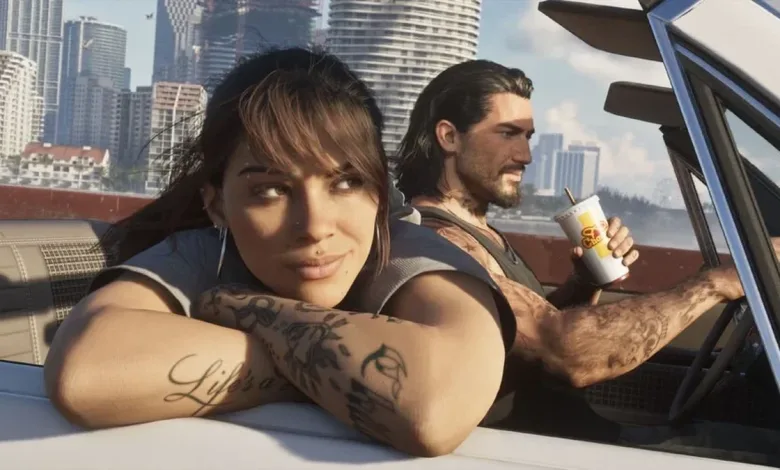
If GTA 6 looks too dark on PS5, adjust HDR in the game’s Display menu rather than relying on the console’s system-wide calibration. HDTV Test’s analysis found that GTA 6 does not follow the PS5’s global HDR settings, and recommends using the in-game sample images as your reference.
HDTV Test performed its analysis on a Sony reference monitor.
Set GTA 6’s in-game HDR values
Open the game and go to Options > Settings > Display > HDR Calibration. The Rockstar logo is part of the game’s calibration, but you do not need to rely on it as your final guide. Instead, focus on the two sample images showing a party on a boat. Press R1 to switch between the lighter and darker versions.
For a display capable of at least 1,000 nits, use these as starting values:
- Brightness: 2,000
- Black Levels: 20
- Paper White: 35
Fine-tune from there to suit your display and room. The best balance can vary with your screen and ambient lighting, so treat these numbers as a starting point rather than a universal preset.
How do these settings compare with what looks right on your display? For more on GTA 6’s in-game settings, follow us on X, Bluesky, YouTube, Instagram, Steam, and Telegram.
Grand Theft Auto VI
Developed by Rockstar North, Rockstar Games
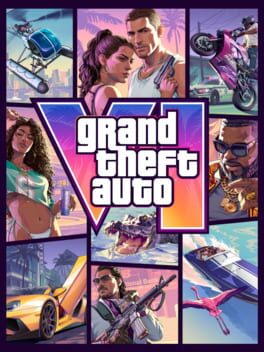
Grand Theft Auto VI heads to the state of Leonida, home to the neon-soaked streets of Vice City and beyond in the biggest, most immersive evolution of the Grand Theft Auto series yet.
- Genre Shooter, Racing, Adventure
- Platforms Xbox Series X|S, PlayStation 5
- Perspective First person, Third person
- Modes Single player, Multiplayer, Co-operative
- Release November 19, 2026
- Publisher Rockstar Games, Take-Two Interactive
-
Age Rating