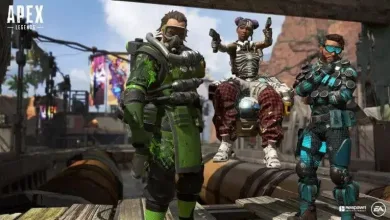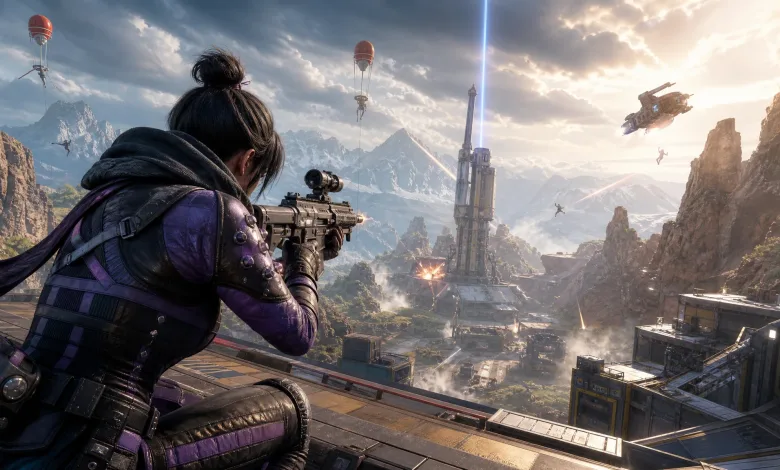
If your Apex Legends 4:3 setup is showing letterboxing or pillarboxing, the fix is handled inside the game rather than through NVIDIA’s scaling controls. Apex’s DX12 stretched-resolution method uses a launch option that applies the stretch during the final rendering stage.
Use these Apex Legends settings
If Apex needs a custom resolution before it appears in the game’s resolution list, keep 1920×1440 enabled. That resolution uses a 4:3 aspect ratio and works with the setup below.

- Open Apex Legends and set the display mode to Fullscreen.
- Choose the 4:3 aspect ratio.
- Select 1920×1440 as the resolution, or whichever you want…
- Open Apex’s Steam properties and find the launch-options field.
- Enter
+mat_letterbox_aspect_min 1.0. - Launch the game and check whether the 4:3 image now fills the display.
Do not use the no-stretching command
The setting that causes confusion is +mat_no_stretching 1. Despite sounding related to the problem, it disables stretching and deliberately forces letterboxing or pillarboxing. Remove it from the launch options if it is already there.
The important combination is Fullscreen, 4:3, 1920×1440, and +mat_letterbox_aspect_min 1.0. NVIDIA’s desktop scaling configuration can remain unchanged because Apex handles the stretch at the end of the rendering process.
Once the launch option is in place, the game should use the intended stretched presentation without requiring extra scaling changes outside Apex. Share your thoughts in the comments, and follow us on X, Bluesky, YouTube, Instagram, Steam, and Telegram.
Apex Legends
Developed by Respawn Entertainment
Conquer with character in Apex Legends, a free-to-play Hero shooter where legendary characters with powerful abilities team up to battle for fame & fortune on the fringes of the Frontier.
Master an ever-growing roster of diverse Legends, deep tactical squad play and bold new innovations that go beyond the Battle Royale experience—all within a rugged world where anything goes. Welcome to the next evolution of Hero Shooter.
- Genre Shooter, Tactical
- Platforms Xbox Series X|S, PlayStation 4, Nintendo Switch 2, PC (Microsoft Windows), PlayStation 5, Xbox One, Nintendo Switch
- Perspective First person
- Modes Multiplayer, Co-operative, Battle Royale
- Release February 4, 2019
- Publisher Electronic Arts
-
Age Rating