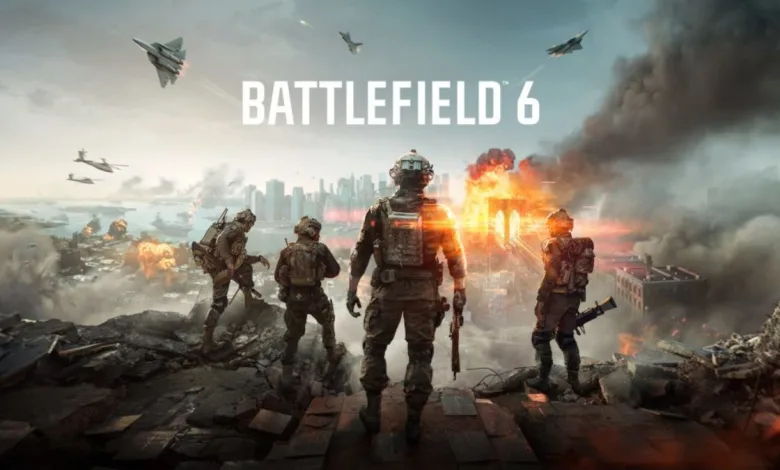
Battlefield 6 is all about speed and precision, and having the right settings can really tip the scales in your favor. If you want to squeeze out more frames and avoid annoying stutters, these tips and tweaks might just do the trick.
Battlefield 6’s open beta has surprised many with its solid visuals and decent optimization. The full game is scheduled for release in October, but you can still jump in for free during the ongoing August beta weekends.
While the game tries to pick the best settings for your setup automatically, a few manual adjustments could give you a smoother ride. Let’s get into the best settings to help you hit max FPS and keep lag off your back.
Best BF6 settings for best performance
Graphics
Keeping everything on low will give you the best FPS, but you’ll lose out on the game’s realistic visuals. Our advice? Pick Custom for Graphics and tweak settings based on how your device responds.
Here’s a custom setup balancing visuals and performance:
| Graphics settings | Value |
|---|---|
| Texture Quality | High |
| Texture Filtering | Ultra |
| Mesh Quality | Low |
| Terrain Quality | Low |
| Undergrowth Quality | Low |
| Effects Quality | Low |
| Volumetric Quality | Low |
| Lighting Quality | High |
| Local Light & Shadow Quality | Low |
| Sun Shadow Quality | Low |
| Shadow Filtering | PCF |
| Reflection Quality | Medium |
| Screen Space Reflections | Low |
| Post Process Quality | Ultra |
| Screen Space AO & GI | GTAO Low |
| High Fidelity Objects Amount | Medium |
If your rig is on the lower end, these might still be a bit heavy. For stutters or low FPS, switch to the Low preset first and then tweak up from there. If you want Anti-Aliasing instead of Upscaling, DLAA or XeSS are solid picks. Camera and Display settings mostly work fine on defaults, so just tweak what feels right. Other settings don’t seem to affect performance much, so feel free to keep them as is or adjust for personal taste.
How to choose the best BF6 settings for your device
Your best settings depend on your CPU, RAM, and GPU (VRAM). Higher visual quality means fewer frames, and fewer frames means you might miss shots. Since you’re reading this, you probably already meet the minimum requirements.
Optimizing performance means managing your device’s resources carefully. Some settings are CPU-heavy, others rely on GPU and VRAM. To max FPS, cut down on CPU-heavy graphics and focus on GPU/VRAM settings within limits.
Battlefield 6 shows CPU usage info if you hover over a setting name under Modify. Handy, right? Here’s a quick rundown:
| Graphics settings | Dependent on? |
|---|---|
| Texture Quality | VRAM |
| Texture Filtering | GPU |
| Mesh Quality | CPU, GPU, VRAM |
| Terrain Quality | CPU, GPU |
| Undergrowth Quality | CPU (medium), GPU |
| Effects Quality | CPU, GPU, VRAM (medium) |
| Volumetric Quality | GPU |
| Lighting Quality | VRAM |
| Local Light & Shadow Quality | CPU, GPU, VRAM (medium) |
| Sun Shadow Quality | CPU, GPU |
| Shadow Filtering | GPU |
| Reflection Quality | GPU (medium) |
| Screen Space Reflections | GPU |
| Post Process Quality | GPU (medium) |
| Screen Space AO & GI | GPU |
| High Fidelity Objects Amount | CPU |
For max FPS, only crank up settings that mainly rely on GPU or VRAM. CPU-heavy ones should stay low to avoid choking your system.